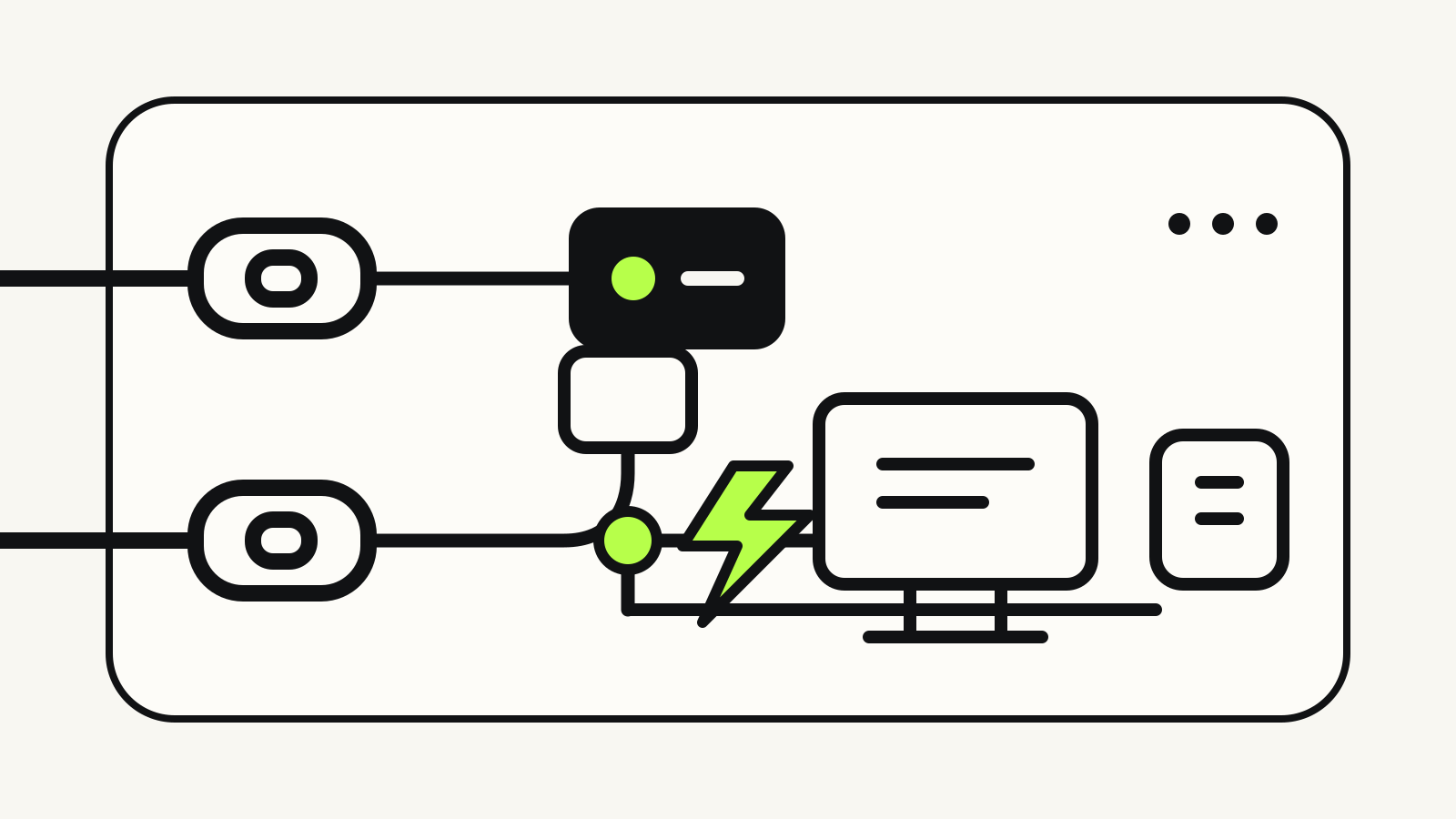
The oval USB-C connector has become the default port on laptops, phones and docks. It has also made shopping harder: two ports can look identical while supporting very different data rates, display modes and charging power.
The useful distinction is simple. USB-C describes the connector. Thunderbolt describes a certified connection standard with a defined set of capabilities. USB4 is another protocol that can run through the same connector. To know what a port or cable can actually do, you need the label and the device specification, not its shape.
The short answer
Choose ordinary USB-C when you need charging, basic accessories or a single display and the product documentation confirms those functions. Choose Thunderbolt when you need a predictable high-performance link for fast storage, multiple displays or a capable one-cable dock.
The word “predictable” matters. USB-IF says certified USB-C cables can be designed for different purposes, and a cable cannot add features that the connected products do not support. A laptop, cable and dock negotiate a common mode; the connection works at the best capability shared by all three.
Start with the connector, then the protocol
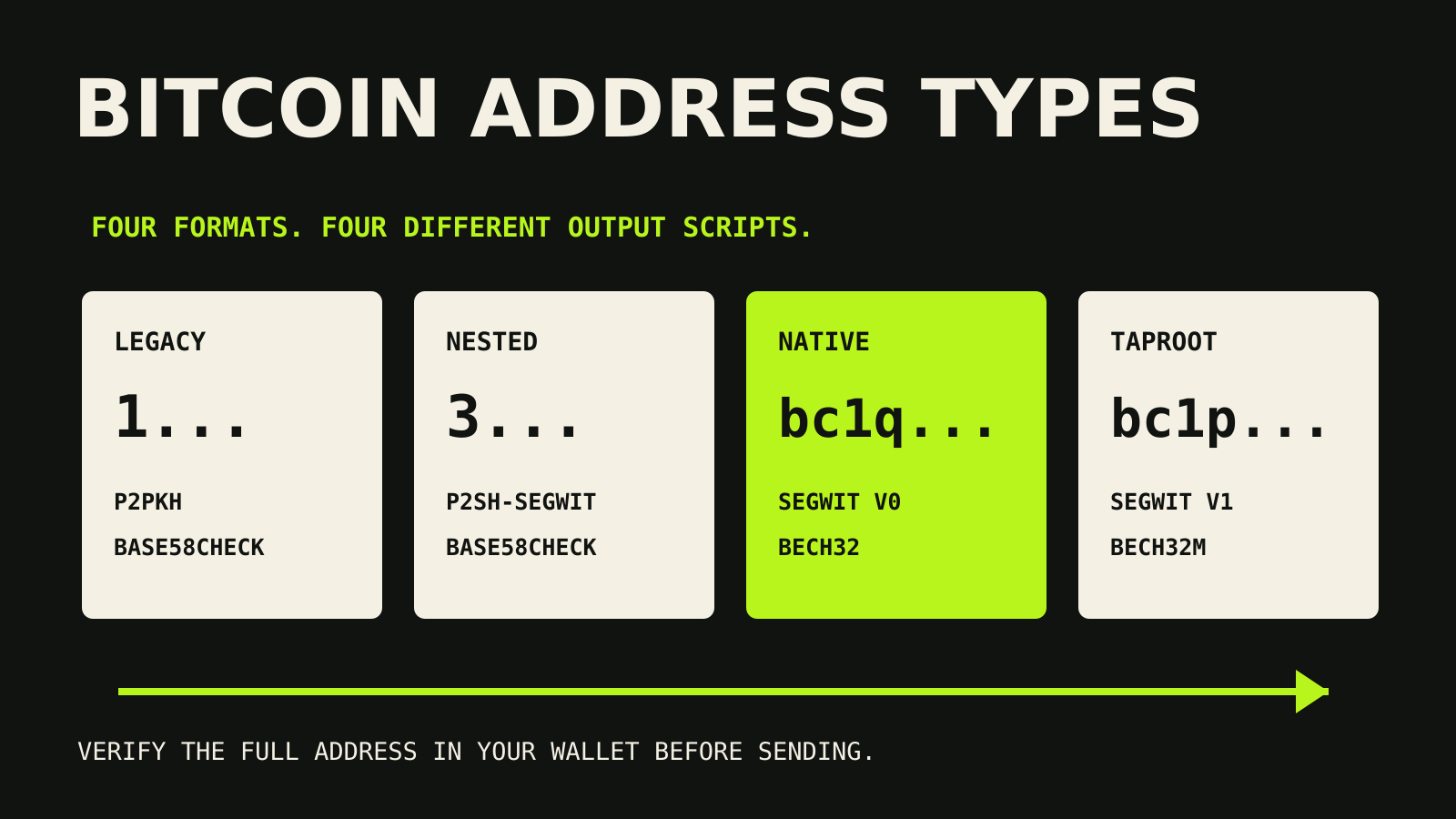
USB-C is the physical interface: a small, reversible plug. The same connector is used by USB 2.0, USB 3.x, USB4 and Thunderbolt 3, 4 and 5. It may also carry DisplayPort video and USB Power Delivery, but those functions are not guaranteed merely because the socket is USB-C-shaped.
USB4 is a USB protocol that shares the available link between data and display traffic. The current USB-IF overview describes USB4 systems reaching up to 80 Gbps with the appropriate certified cable, while retaining backwards compatibility with earlier USB generations.
Thunderbolt also uses USB-C. Intel says Thunderbolt 4 supports a 40 Gbps connection and imposes minimum requirements for display and PCIe data capability. Thunderbolt 5 raises bidirectional bandwidth to 80 Gbps and can use a 120 Gbps transmit mode for display-heavy workloads. Those are protocol ceilings and certification requirements, not a promise that every drive, dock or computer will reach the headline number.
| What the label identifies | Typical meaning | What still needs checking |
|---|---|---|
| USB-C | Connector shape | Data protocol, video support and charging power |
| USB4 | USB protocol over USB-C, with current implementations up to 80 Gbps | Device generation, cable rating and display support |
| Thunderbolt 4 | Certified 40 Gbps connection with defined minimum capabilities | Host display limits, dock ports and device performance |
| Thunderbolt 5 | Certified 80 Gbps bidirectional link, with a display-oriented 120 Gbps transmit mode | Host support, cable and peripheral compatibility |
Why a fast cable can still run slowly
A connection is a chain. The host port, cable, dock and peripheral all have to support the same high-speed mode. If one component supports only a lower mode, the link falls back.
Intel’s USB-C and Thunderbolt support note makes this practical point: products with different connection capabilities can work together, but data moves at the lowest supported rate in the chain. That is why replacing a laptop with a newer model may not improve transfer speed if the old dock or cable remains the bottleneck.
The workload matters too. A 40 Gbps link does not mean a portable SSD writes at 40 gigabits every second. Protocol overhead, the drive controller, flash memory, thermal limits and competing display traffic all affect real throughput.
Charging is a separate question
Neither the connector nor a Thunderbolt badge automatically tells you how many watts a laptop will receive. The host, charger, cable and device must agree on a supported USB Power Delivery profile.
USB-IF now requires certified USB-C-to-USB-C cables to show either a 60W or 240W power capability. Certified cables that support more than USB 2.0 data also carry a data-rate label. That helps, but the label is only the cable’s ceiling. A 240W cable will not make a 65W charger deliver more power, and a dock’s upstream charging output may be lower than its own power adapter rating.
For a dock, check four separate lines in the specification:
- upstream charging power delivered to the laptop;
- the laptop’s required wattage under load;
- whether the host port accepts charging;
- whether the supplied cable has the needed power rating.
What to check before buying a dock or cable
Ignore listings that rely on “USB-C compatible” without naming capabilities. Look for these details instead:
- Protocol and generation. Find USB 3.2, USB4, Thunderbolt 4 or Thunderbolt 5, not just “Type-C.”
- Rated data speed. Match the cable to the fastest mode supported by both devices.
- Display support. Check the number, resolution and refresh rate of external displays supported by the specific laptop and dock. A dock cannot override the host’s display engine.
- Charging output. Compare the dock’s power delivery to the laptop charger you normally use.
- Cable length and certification. High-speed passive cables have tighter signal limits. A certified cable with the correct data and power markings is easier to verify.
- Port sharing. Some docks divide bandwidth among storage, networking and displays. Read the dock’s port map rather than adding all advertised maxima together.
If you are buying a machine for local AI workloads, the port decision should sit alongside processor, memory and accelerator choices. Our guide to what an NPU changes in an AI PC explains why the rest of the hardware still matters.
When Thunderbolt is worth paying for
Thunderbolt is most useful when the dock is central to the setup: several high-resolution displays, fast external storage, capture hardware and network adapters attached through one cable. Certification reduces ambiguity and gives buyers a clearer minimum feature set.
For a phone charger, keyboard, audio interface or occasional file transfer, a properly specified USB-C cable may be entirely adequate. The goal is not to buy the most expensive logo. It is to match the complete connection chain to the job.
Common questions
Can I plug a USB-C device into a Thunderbolt port?
Usually, yes. Thunderbolt 3, 4 and 5 ports use USB-C and are designed to work with compatible USB devices. The connection runs in the best mode supported by both products.
Does every USB-C port support a monitor?
No. The port needs a supported display mode, such as DisplayPort Alt Mode or display tunnelling through USB4 or Thunderbolt. Check the computer’s specifications.
Is a Thunderbolt cable always faster than a USB-C cable?
Not by itself. A Thunderbolt cable can enable the certified mode when the host and device support it. Connected to slower USB hardware, it falls back to that hardware’s capability.
How can I identify a capable USB-C cable?
Look for certified data-rate and power markings, then compare them with the requirements of the host and peripheral. Do not rely on the connector’s appearance.
Sources and document date
This guide was checked on 15 October 2026 against the USB-IF cable and connector guidance, the USB4 overview, Intel’s USB-C and Thunderbolt compatibility note, and Intel’s Thunderbolt 4 and 5 messaging guide.