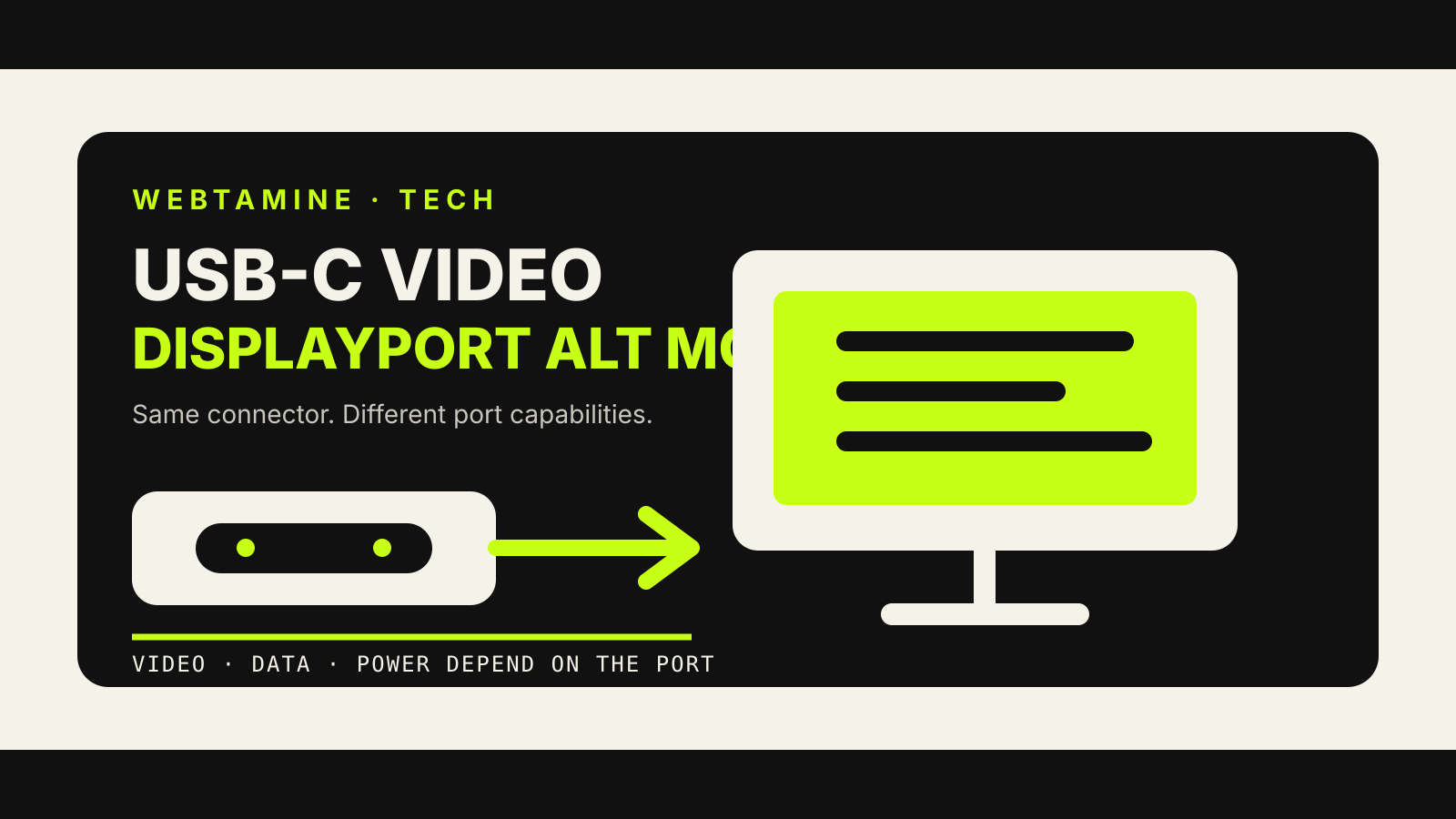
USB-C DisplayPort Alt Mode lets a USB-C port carry DisplayPort video. The connector can look identical to a charge-only or data-only port, so the shape alone does not tell you whether an external monitor will work.
The host, port, cable, dock or adapter and display all have to support the relevant path. That is why one USB-C cable can drive a monitor while another appears to do nothing.
USB-C is the connector, not the video promise
USB-C describes the reversible connector and its wiring framework. Products can implement different combinations of USB data, USB Power Delivery, DisplayPort Alt Mode and USB4.
DisplayPort Alt Mode is one optional way to use the high-speed lanes inside that connector. VESA says it can carry DisplayPort audio and video while the same connection also supports USB data and power, depending on how the lanes are assigned.
This is the same distinction covered in our guide to USB-C versus Thunderbolt: a familiar plug does not prove which protocols, speeds or display features are available behind it.
Alt Mode repurposes the high-speed lanes
A full-featured USB-C connection has four high-speed lanes. VESA’s DisplayPort Alt Mode specification allows a device to use some or all of them for DisplayPort.
A four-lane configuration gives the video link the most lane capacity. A two-lane configuration can leave two lanes for simultaneous SuperSpeed USB data. USB 2.0 can still travel over its separate pins even when all four high-speed lanes carry DisplayPort.
The operating system and connected devices negotiate the mode. You do not normally choose lane wiring manually, but the result affects how much display bandwidth and USB data capacity the connection can provide at the same time.
That tradeoff explains why a dock can support a high-resolution monitor yet reduce the available USB data rate, or preserve faster USB data while offering less display bandwidth. The exact outcome depends on the DisplayPort generation, lane count, link rate and whether compression is used.
DisplayPort Alt Mode and USB4 tunneling are different paths
A USB4 link can transport DisplayPort through a tunnel inside the USB4 connection. That is not the same mechanism as assigning the connector’s lanes directly to DisplayPort Alt Mode, although both can emerge from a USB-C port and reach a display.
USB-IF’s USB Type-C system overview describes USB4 discovery through USB Power Delivery messages and identifies DisplayPort as one of the protocols that USB4 can tunnel. It also specifies DisplayPort Alt Mode support for relevant USB4 hosts, hubs and docks that implement DisplayPort tunneling.
The distinction matters when troubleshooting docks. A device may need a USB4-capable dock for tunneled display traffic, while a simpler USB-C adapter may rely on DisplayPort Alt Mode. Product documentation should state which connection is required.
A USB-C to DisplayPort cable is not a universal converter
A passive USB-C to DisplayPort cable expects the USB-C source to provide DisplayPort Alt Mode. The cable changes the connector, not the source device’s capabilities. If the laptop or phone does not output DisplayPort on that port, the cable cannot create it.
Adapters for HDMI, DVI or VGA add another step. VESA notes that a DisplayPort Alt Mode source can drive those display types through an appropriate converter. The adapter must translate the signal where the destination does not accept native DisplayPort.
The direction also matters. A cable designed to take DisplayPort from a USB-C source to a DisplayPort monitor is not automatically able to take DisplayPort from a desktop graphics card into a USB-C-only display.
The cable can limit what the port can do
USB-C cables are not all wired or rated alike. A cable intended only for charging may lack the high-speed conductors needed for video. Another cable may carry video but not the highest link rate that the devices support.
For a direct USB-C display connection, check that the cable is full-featured and rated for the required data or video mode. For USB4, use a cable certified for the USB4 speed and length you need. Do not infer capability from thickness, price or a USB-C plug alone.
Longer active cables and docks can introduce their own limits. Read the device maker’s supported resolution, refresh rate, color depth and multi-display conditions as a set. “8K” on a product page does not describe every combination of refresh rate, color format and simultaneous USB traffic.
Power delivery is negotiated separately
A monitor or dock can send power back to a laptop over the same USB-C connection, but that is a USB Power Delivery function rather than a DisplayPort requirement.
The charger, cable and receiving device negotiate a supported power level. A display that carries video over USB-C may provide little power or none. A dock advertised with a large power input may reserve some of that power for itself and connected peripherals.
Check both the dock’s input rating and the power it can deliver to the host. Video working does not prove that the laptop is charging at its preferred rate.
How to check a port before buying an adapter
Start with the device’s specification sheet or manual. Look for “DisplayPort over USB-C,” “DisplayPort Alt Mode,” a DisplayPort logo beside the port or an explicit USB4/Thunderbolt display capability.
Then confirm:
- which physical USB-C port supports video, because ports on the same computer can differ;
- the maximum supported displays, resolution and refresh rate;
- whether those limits change when USB data uses the same connection;
- the cable or dock standard required for that result;
- whether the dock supports macOS, Windows, ChromeOS or another relevant platform as described by its maker.
VESA’s help page says a failure can occur because the selected USB-C port does not support DisplayPort or because an ordinary USB hub sits in the path. A dock designed to carry DisplayPort is different from a generic hub whose downstream ports only provide USB.
A practical troubleshooting order
When a display is not detected, reduce the setup before changing software.
- Connect the display directly to the computer with a known video-capable cable.
- Verify that you are using the specific USB-C port documented for video.
- Select the correct input on the monitor.
- Try a lower resolution or refresh rate to test whether bandwidth is the constraint.
- Add the dock or adapter back only after the direct path works.
- Check the device maker’s firmware and operating-system guidance for that dock or display.
If charging works but video does not, the connection may still lack DisplayPort support or a suitable high-speed cable. If video works but USB storage becomes slower, the negotiated lane allocation or dock architecture may be sharing capacity.
USB-C DisplayPort Alt Mode is useful precisely because one cable can combine several jobs. It is also easy to misunderstand because none of those jobs is guaranteed by the connector shape. The reliable path is to verify the port, cable and dock capabilities together.
Sources and version note
This guide reflects official material checked on October 25, 2026: VESA’s DisplayPort Alt Mode 2.0 announcement, its original explanation of DisplayPort on USB-C, the VESA USB-C help page and the USB-IF USB Type-C system overview. Product implementations and certification requirements can change, so check current device documentation before purchase.